
Quick Start
OPanel is essentially a plugin / mod, so installing OPanel actually means downloading its plugin / mod jar file and installing it into your server.
Download
You can get OPanel through the following methods:
- OPanel Resource Library: https://dist.opanel.cn
- Github Releases: https://github.com/opanel-mc/opanel/releases
- Curseforge: https://curseforge.com/minecraft/bukkit-plugins/opanel
Due to the differences of each platform and version, a download list for a single OPanel version usually contains multiple jar files for different versions. The file name format of these jar files is opanel-<server>-<game version>-build-<OPanel version>.jar.
INFO
The 'game version' in the jar package name refers to the minimum version supported by that jar package.
You can check the server platforms and game versions currently supported by OPanel on the Platform and Version Support page.
Install
Move the downloaded jar file into the corresponding plugins / mods folder, and after starting the server, the installation is done.
- Paper servers:
pluginsfolder - Forge and Fabric servers:
modsfolder
WARNING
The minimum Fabric Loader version supported by OPanel is 0.16.14 (0.17.3 for Minecraft versions 1.21.11 and above).
The minimum NeoForge version supported by OPanel is 21.1.217.
The Paper 1.16.x version of OPanel requires Java version >=14 to run properly.
Usage
After the installation, you can start using OPanel in your browser.
First launch
On the first launch, OPanel will print the following info in the console:
===========================OPanel===========================
Initial launching detected,
Check opanel/INITIAL_ACCESS_KEY.txt for the initial access key.
Remember to delete the file for your server security.
============================================================
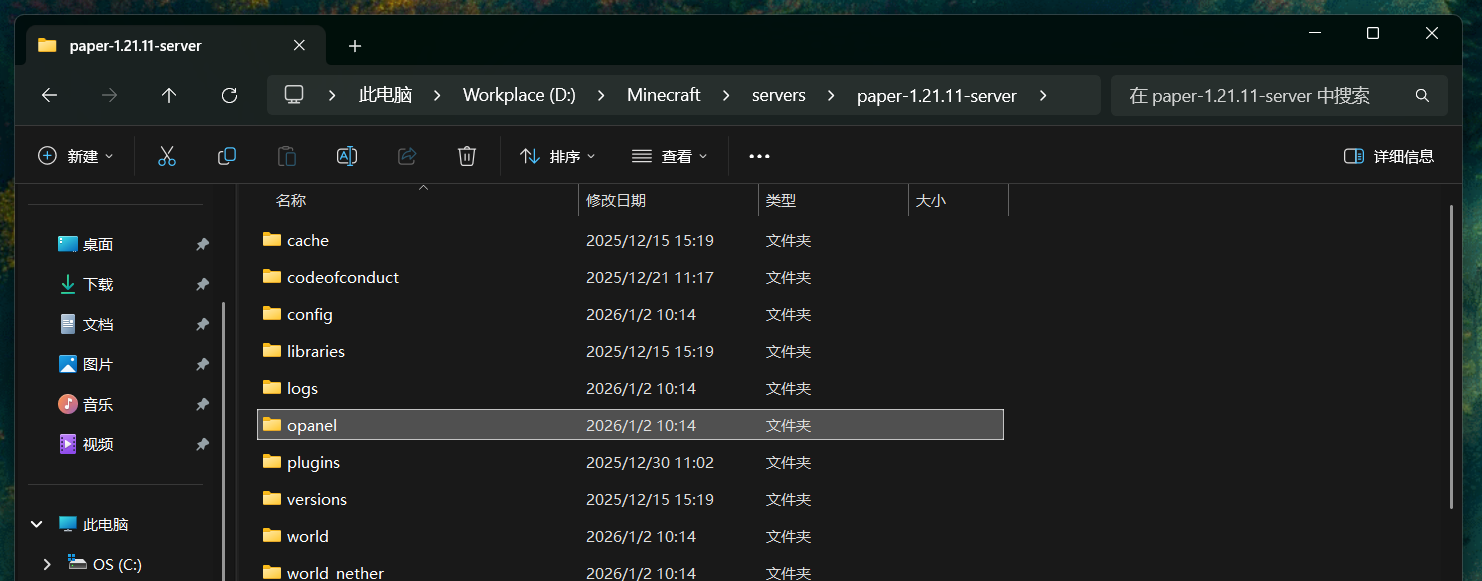
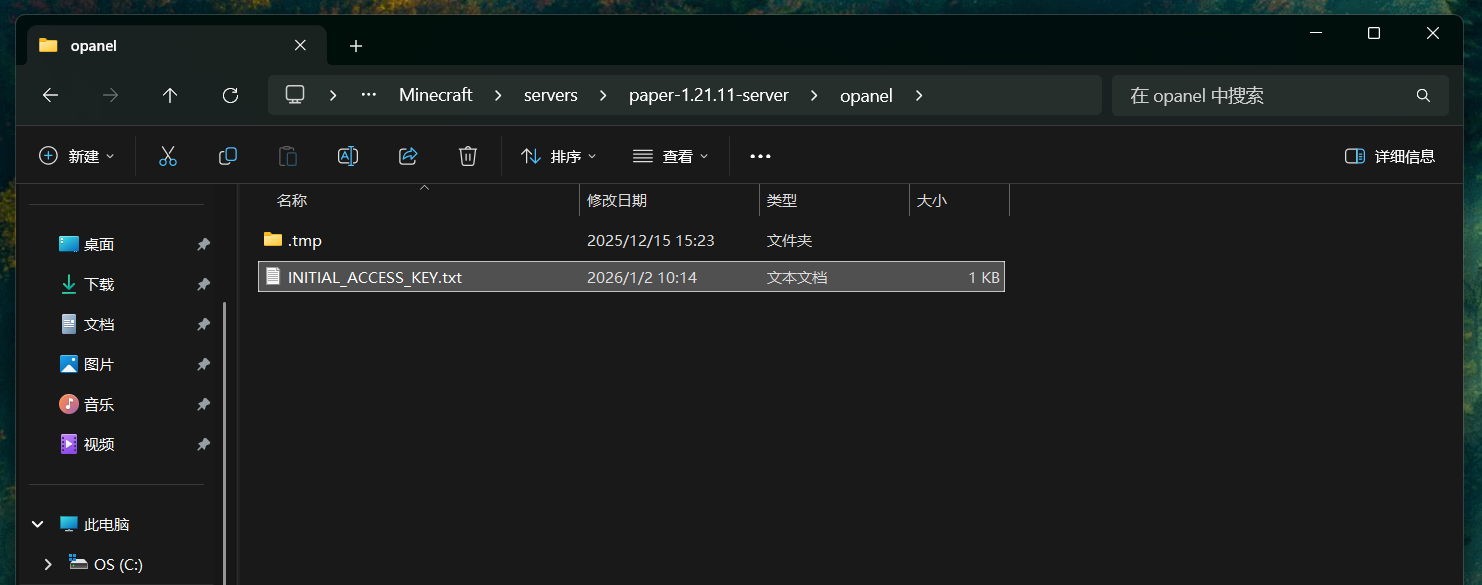
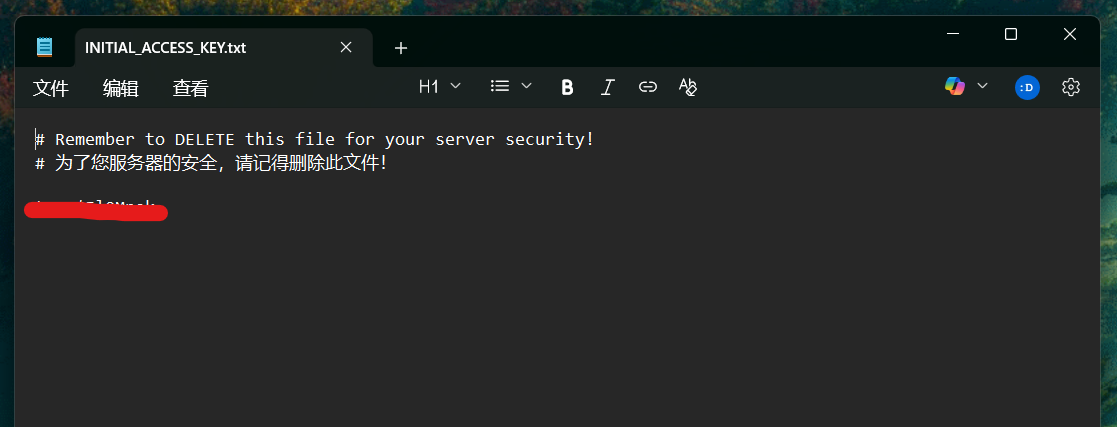
At this time, the system generated a random access key automatically. You can find the access key in the INITIAL_ACCESS_KEY.txt under the opanel folder.
INFO
After logging in with the initial password, be sure to properly safeguard the key and delete the system-generated INITIAL_ACCESS_KEY.txt file to reduce security risks.
Next, you can open your browser and access your server panel via http://<your_server_public_IP>:3000. The default port of this panel is 3000, and the port can be manually modified in OPanel's configuration file.
You can change your access key in the settings after logging in to the panel.
WARNING
Cloud server providers generally set up firewalls for server ports to enhance security. If you are using a cloud server to run a Minecraft server, please configure the firewall and port mappings to allow and forward the port that OPanel is running on. Then, please use the public IP address provided by the cloud server provider + the forwarded port used by OPanel to get access to OPanel.