
Quick Start
This tutorial will help you get started with OPanel extension development and create your first OPanel extension.
Prerequisites
- Deploy OPanel
2.2.0-pre5or later (see the Quick Start guide) - Set up a Java development environment (JDK 14+) and install IntelliJ IDEA
Optional: Develop with AI Agents
If you want to use an AI agent to quickly develop an OPanel extension, you can install the Agent Skill provided by OPanel.
npx skills add opanel-mc/opanelCreate a New Project
Open IntelliJ IDEA, click New Project, select Gradle, and click Create.
Wait for IntelliJ IDEA to complete the Gradle sync. Once the sync succeeds, open build.gradle and add the OPanel API as a dependency.
repositories {
  mavenCentral()
}

dependencies {
  compileOnly 'cn.opanel:opanel-api:<OPanel version>'
}

java {
  toolchain {
    languageVersion = JavaLanguageVersion.of(14)
  }
}
If you need to register backend endpoints later, you must also add Javalin as a dependency.
dependencies {
  // ...
  compileOnly 'io.javalin:javalin:5.6.4'
}
Extension Metadata
Create an extension.json file in your project's resources directory to store the extension metadata. See extension.json for details.
OPanel cannot load an extension without this metadata file.
Hello World
Create a main class named Main.java as the extension entry point. The following code is an example main class:
package com.example.extension;

import cn.opanel.api.*;

@Extension
public class Main {
    private OPanelAPI api;

    @ExtensionLoad
    public void load(OPanelAPI api) {
        this.api = api;
        api.logInfo("Example extension loaded");
        api.logInfo("Hello World!");
    }

    @ExtensionUnload
    public void unload() {
        api.logInfo("Example extension unloaded");
    }
}
The load() method is the entry point for the extension. During startup, OPanel calls each extension's load() method to activate it. The unload() method handles extension shutdown. When OPanel stops, it calls each extension's unload() method to release resources.
Note
A class annotated with @Extension is the extension's main class. An OPanel extension must have exactly one main class.
Build and Run
After writing the code, open the Gradle tool window in IntelliJ IDEA's right sidebar and double-click the build task. The built JAR file will appear in the build/libs directory.
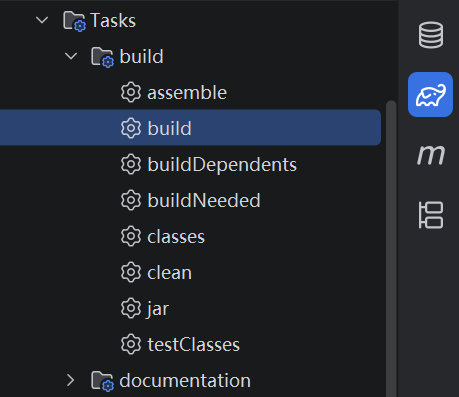
Prepare a Minecraft server with OPanel installed, place the built JAR file in the server's opanel/extensions directory, and start the server. If the following messages appear in the log:
[OPanel] [Example Extension] Example extension loaded
[OPanel] [Example Extension] Hello World!
You have successfully created your first OPanel extension!