
Connecting to MCDR
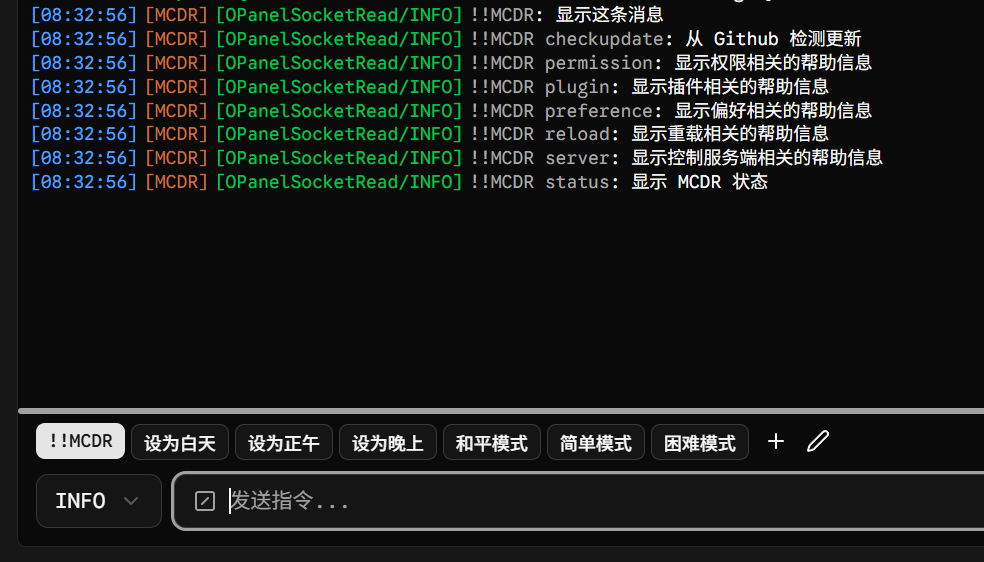
If you are using MCDR to manage and start your server, and you want to perform MCDR-related operations through OPanel, you can use the OPanel-provided MCDR plugin opanel_mcdr_bridge to establish the connection. The configuration is described below.
Prerequisites
- Deploy OPanel on the server managed by MCDR, version
2.0.1or later (see the doc Quick Start)
Deploy
- Use an MCDR command to quickly install the
opanel_mcdr_bridgeplugin
!!MCDR plugin install opanel_mcdr_bridge- Restart the server
!!MCDR server restart- Log in to the OPanel dashboard and start using it
Note
Under the default configuration, DO NOT expose port 25576, otherwise it may pose a security risk to the server.
Advanced Configuration
The way OPanel communicates with MCDR is: the opanel_mcdr_bridge plugin opens a Socket service on port 25576 of the server's loopback address, and OPanel actively connects to that port after detecting the MCDR environment.
Since this Socket service has no authentication, it is recommended NOT to expose this port and to use it only for internal connections. If you need to change the port, refer to the method below.
Changing the Port
- Open
config/opanel_mcdr_bridge/config.jsonin the MCDR directory
{
  "socket_host": "127.0.0.1", // Host the Socket service binds to, defaults to the loopback address 127.0.0.1
  "socket_port": 25576 // Port the Socket service binds to
}- Change
socket_portto your new port, save the configuration file, and reloadopanel_mcdr_bridge
!!MCDR plugin reload opanel_mcdr_bridgeNote
It is not recommended to change socket_host, otherwise the Socket service may be exposed to the public internet, causing a security risk.
Open OPanel's configuration file and change the
mcdrSocketPortentry to the new port you just setRestart the server
!!MCDR server restart